Installation guide
Install Saudi Checkout Guard, prepare your checkout, then activate and test the rules you need. You can return to this guide at any time.
Screenshots show the Shopify listing, an example store, and sample app settings. Select any image to see it at full size.
The app checks the format of a Saudi Short Address. It does not verify the address with SPL, confirm who lives there, or guarantee delivery. It uses Shopify’s existing address field; there is no theme code or checkout block to install.
1. Install and open the app
- Open the Saudi Checkout Guard listing in the Shopify App Store and select Install. Sign in to the store you want to protect, review the requested permissions, and confirm the installation.
- Open Apps > Saudi Checkout Guard in Shopify Admin. Choose English or العربية. If a staff account cannot install apps or change checkout settings, ask the store owner to complete those steps.
- On a new installation, the rules are not active yet. Complete the steps below before relying on the app.
Open Shopify App Store listing
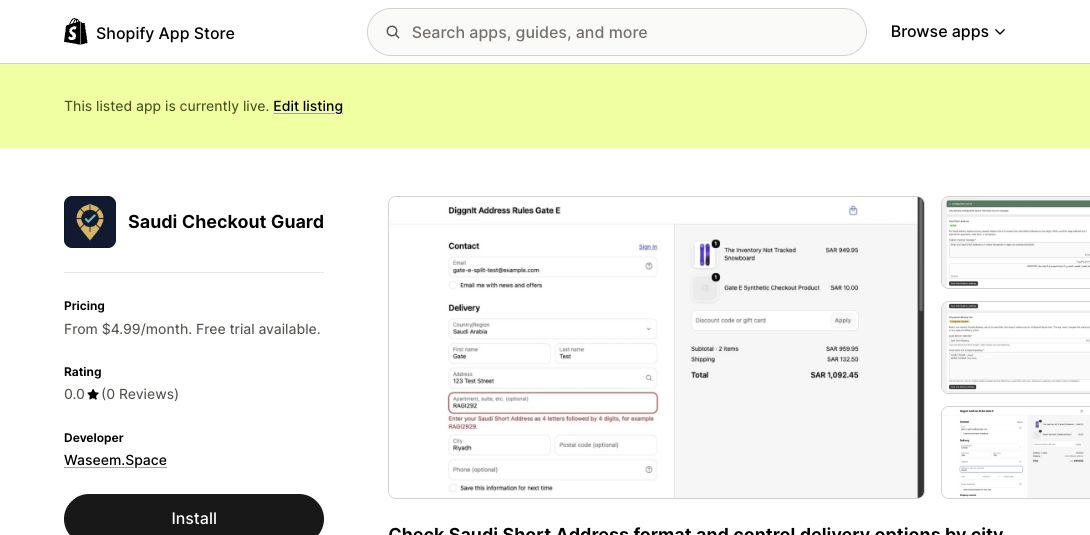
Open the Saudi Checkout Guard listing and select Install. The listing shows plans starting at $4.99 USD/month, with a free trial available. Compare the two plans in step 2.
Open full-size screenshot (new tab)2. Choose your plan
- Open Plans in the app. Short Address costs $4.99 USD per store every 30 days and includes Saudi Short Address format checks. Guard + City Rules costs $14.99 USD per store every 30 days and adds delivery rules for selected Saudi cities. Both plans include a 14-day free trial for new stores.
- Select View plans and manage subscription in Shopify, then choose your plan. Review the price, trial, and recurring charges on Shopify’s approval screen before approving. You return to the app after approval; confirm the plan and included features under Current access. If the status has not updated, select Refresh subscription status or contact support.
- Stores with the app installed when paid plans launch keep Short Address checks and city rules without a subscription charge. If Plans confirms your existing free access, skip plan selection and continue with setup.
- Choosing a plan does not activate any rule. Continue with the steps below to save, activate, and test your settings. For custom development or implementation, contact support for a Custom Partnership quote before work begins.
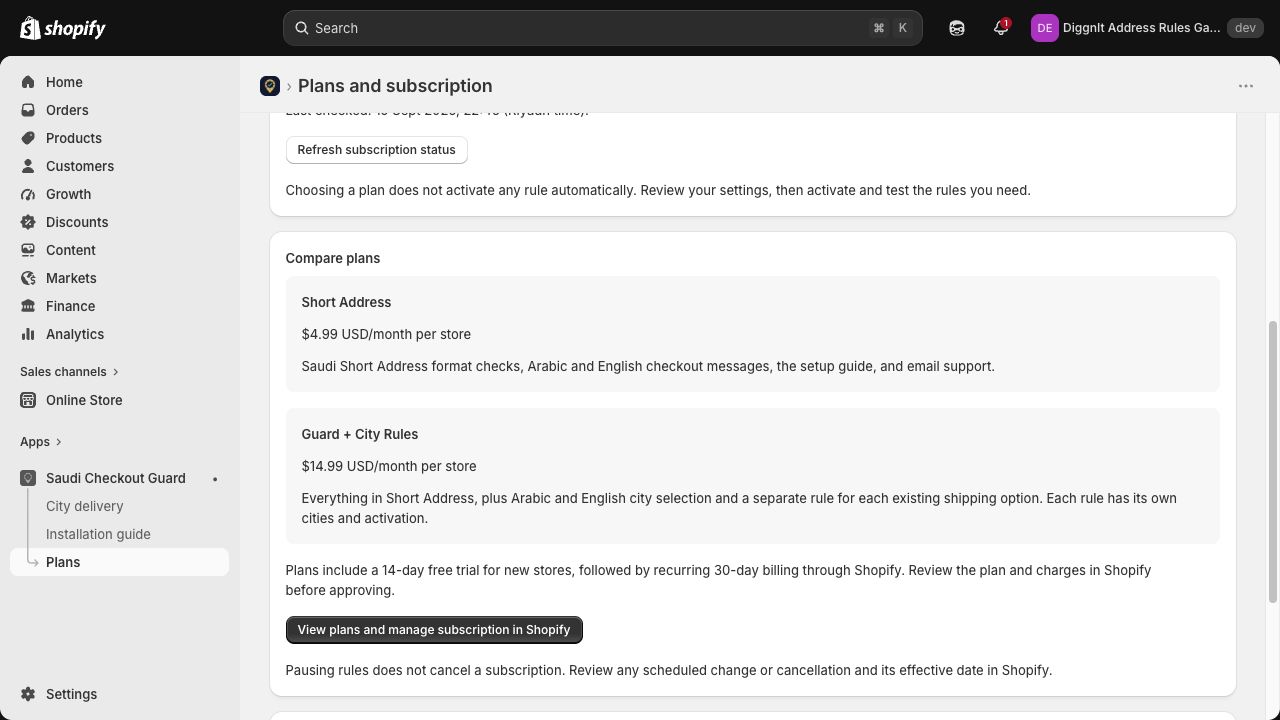
Open Plans in the app to compare Short Address and Guard + City Rules. Select View plans and manage subscription in Shopify, then choose a plan and review Shopify’s approval screen before accepting. Shown here in a development store.
Open full-size screenshot (new tab)3. Prepare Address line 2
- In Shopify Admin, go to Settings > Checkout > Customer information. Set Address line 2 (apartment, unit, etc.) to Optional, then save. Keep the field visible. This Shopify setting applies across your markets; the app’s active rule requires the Short Address only for Saudi delivery addresses.
- In Settings > Checkout > Checkout language, select Edit checkout content. Review the Address line 2 label and placeholder, and update each language your store offers. Explain that Saudi customers should enter their Short Address, while customers outside Saudi Arabia may enter apartment or unit details. The app does not change these labels for you.
- For Saudi delivery, customers should enter only four English letters followed by four digits, such as RAGI2929, in Address line 2. Uppercase and lowercase English letters are accepted. Do not add spaces or apartment details to that field; keep other address details in the appropriate separate fields.
Suggested field label
Short Address (Saudi Arabia) / Apartment, suite, etc. (elsewhere)
A global label must still make sense to customers outside Saudi Arabia. Shopify may show “optional” because of the global field setting; the active Saudi rule still checks the code when the customer continues.
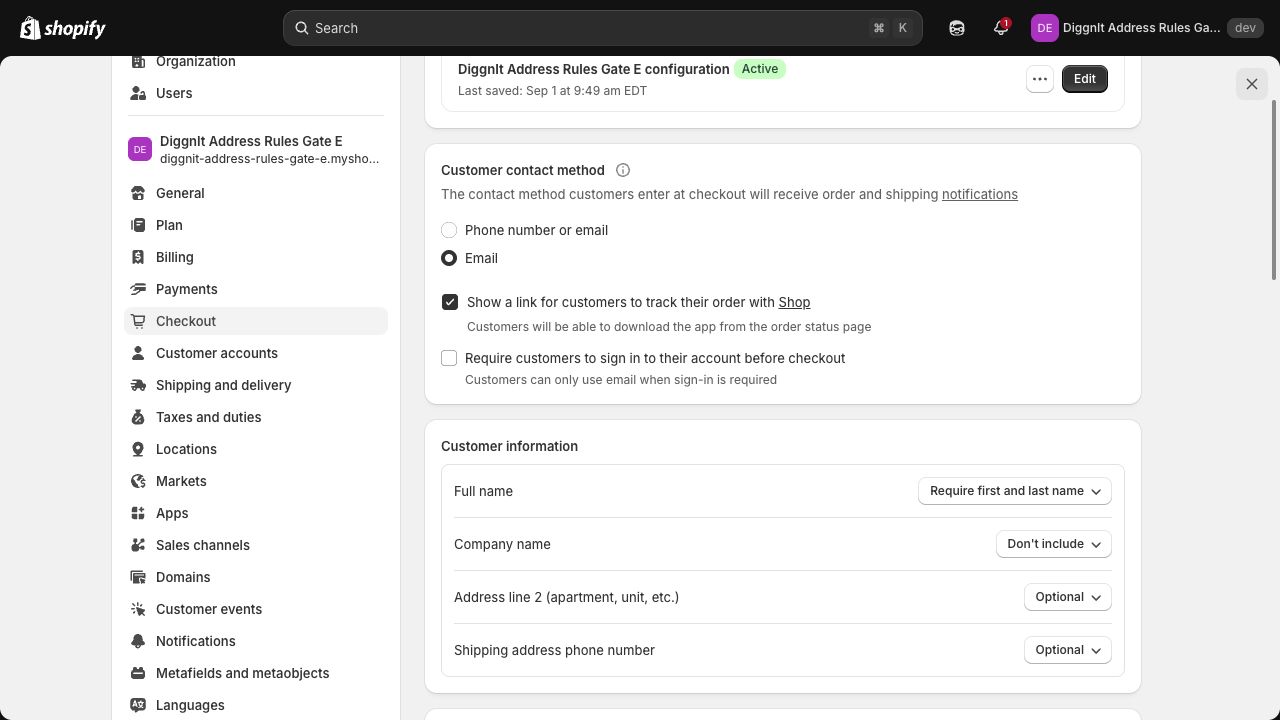
In Customer information, keep Address line 2 visible and set it to Optional. Save any change. Shown here in an example store.
Open full-size screenshot (new tab)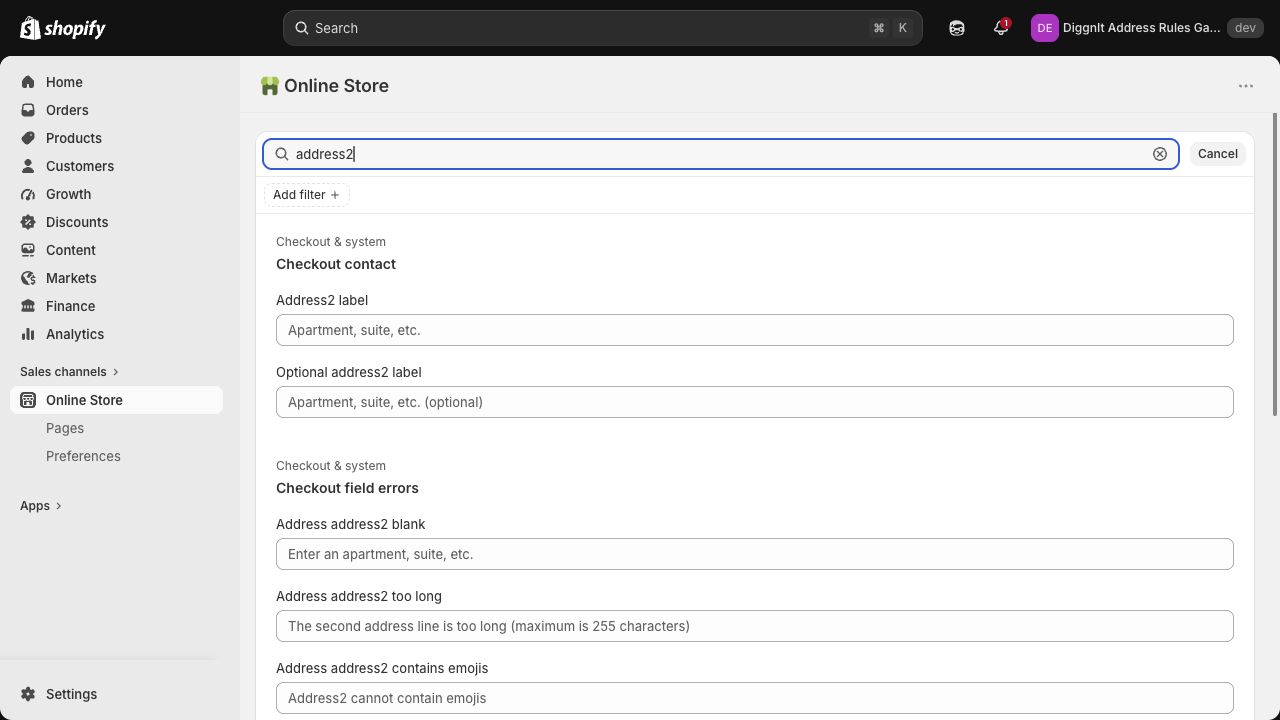
After opening Edit checkout content, search for address2 to find the Address2 label and Optional address2 label. Review the field wording in every language your store offers.
Open full-size screenshot (new tab)4. Save your Short Address settings
- Return to the app’s Short Address page. Review the English and Arabic checkout messages. These appear when a Saudi customer leaves the code blank or enters it in the wrong format.
- Select Save Short Address settings. A new rule should show Ready to activate. Saving an existing rule keeps its current activation state, so changes to an active rule take effect while it remains active.
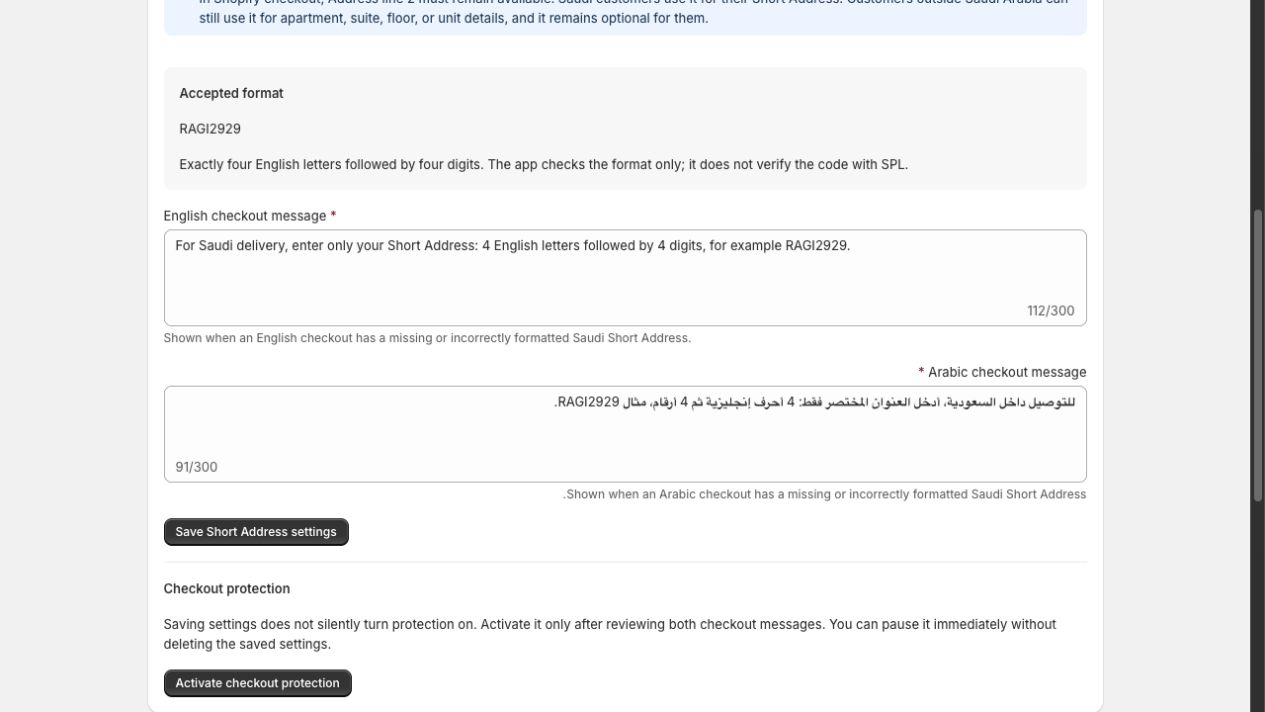
Review both checkout messages, then save your Short Address settings. This is a sample preview of the app.
Open full-size screenshot (new tab)5. Activate and test checkout
Choose a quiet time when you can check checkout immediately. Select Activate checkout protection and confirm the app shows Active. Then open a fresh checkout with an item that requires shipping. Use test details and stop before payment; you do not need to place an order for these checks.
- Saudi Arabia with RAGI2929 in Address line 2: the Short Address rule should allow you to continue.
- Saudi Arabia with a blank code, ABC123, or a code containing spaces: the expected message should prevent you from continuing until you correct it.
- If you ship outside Saudi Arabia, test one of those destinations with Address line 2 blank, then with apartment details. This app’s Short Address rule should not block either case.
- Repeat in English and Arabic, on desktop and mobile, and after returning to the cart. Check saved addresses and the accelerated payment options you actually offer. If a wallet cannot show a way to correct the address, contact support before relying on that path.
Ready to activate means saved, not running. A successful test of the code format does not prove an address exists. If any test fails, pause checkout protection and confirm checkout recovers before asking support for help.
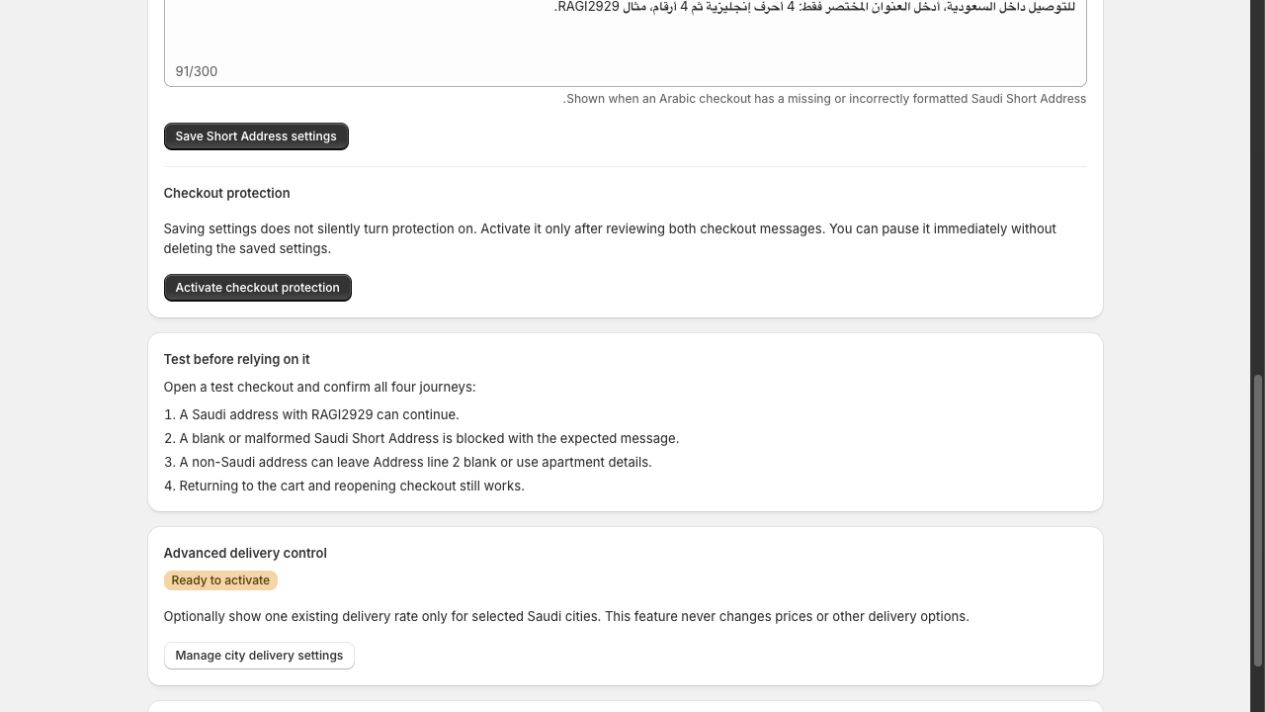
A saved rule shows Ready to activate. Select Activate checkout protection when you are ready to test. This is a sample preview.
Open full-size screenshot (new tab)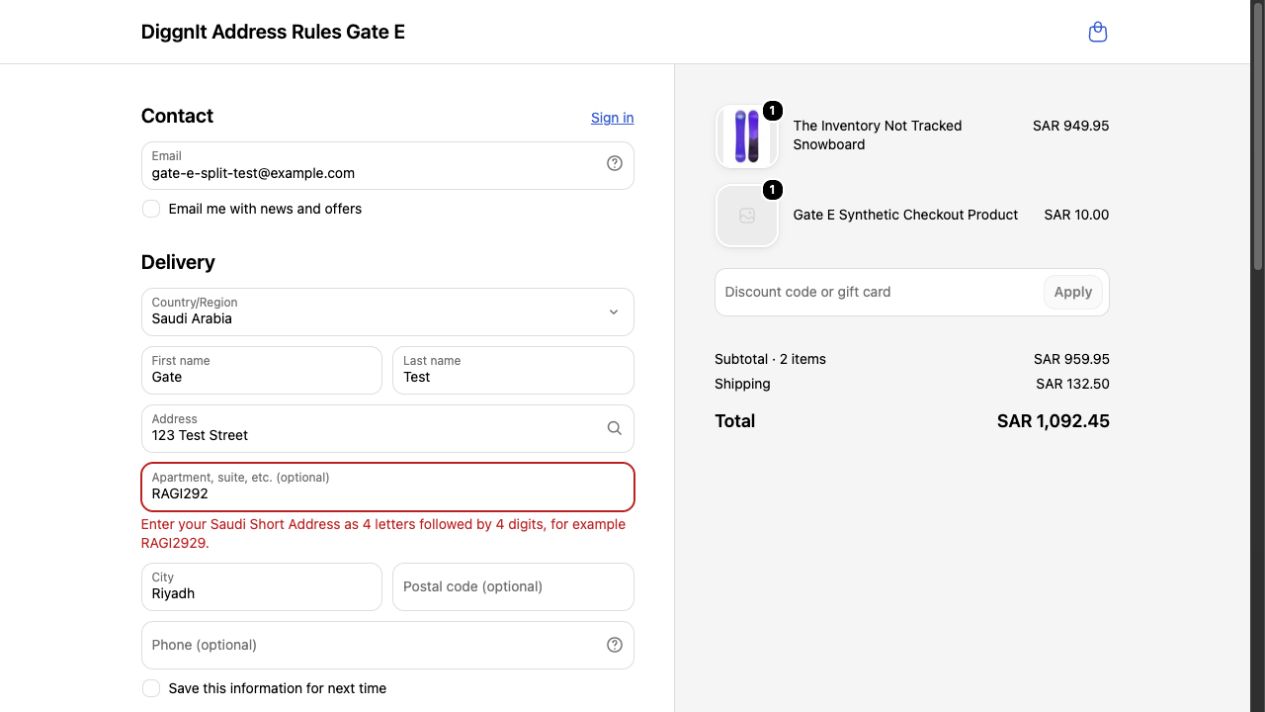
Example test checkout: RAGI292 is missing a digit and triggers an error. Your message may differ. Use test details and stop before payment.
Open full-size screenshot (new tab)6. Optional: set delivery rules by Saudi city
- City delivery is included in Guard + City Rules and the free access retained by stores with the app installed when paid plans launch. Open City delivery. Under Shipping rules, choose Edit rule for the shipping option you want to change, or Add shipping rule for another option. If you have no saved rules, start with the New shipping rule form. Each rule has its own shipping option, cities, and activation setting.
- Copy the exact title of an existing delivery rate from Shopify’s shipping settings into the selected rule. Set the rate’s name, price, and delivery promise in Shopify first. The app does not create a rate or change its price or delivery promise.
- Search for cities in Arabic or English and add only those your delivery service covers for this shipping option. Each city includes a reviewed set of common Arabic and English spellings; you do not need to enter those spellings yourself.
- Select Save city delivery settings. A new rule stays inactive until you select Activate city delivery control; confirm that this rule then shows Active and test it immediately. Saving an existing rule preserves its activation state, so changes to an active rule apply at checkout. Save or discard edits before switching rules. Repeat these steps separately for each shipping option you want to control.
- For each active rule, test a covered Saudi city, a Saudi city outside that rule’s list, and a non-Saudi destination if you serve one. The selected rate should be eligible only for that rule’s configured Saudi cities; Shopify’s other shipping conditions still apply. Check that another suitable delivery option remains available where needed.
- Check the rate title again if you rename a shipping method. A changed title will no longer match the rule and the renamed rate might remain visible. An unknown city spelling hides only the matched rate. Other delivery options and prices remain unchanged by this app.
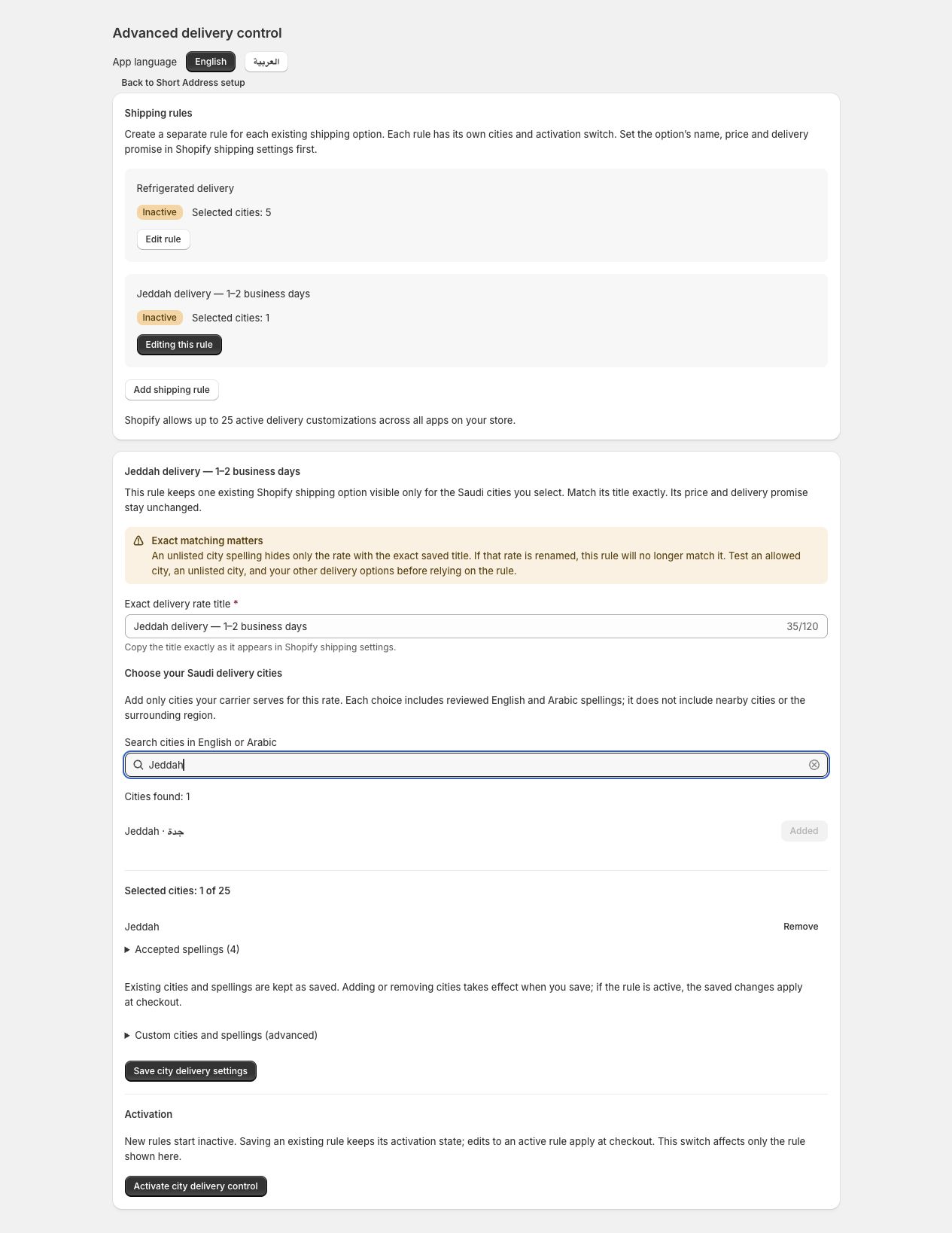
Sample rules for refrigerated delivery and Jeddah delivery in 1–2 business days. Each rule has its own cities and activation; both are inactive here. Rate names and delivery promises are examples you set in Shopify shipping settings.
Open full-size screenshot (new tab)Get help
Email us for installation help, billing questions, or unexpected checkout behavior. We aim to reply within two Saudi business days.
Include your store’s .myshopify.com domain, the step or rule involved, when it happened, and a screenshot with customer information removed.
Do not send customer names, addresses, Short Address codes, payment details, passwords, access tokens, or two-factor codes.
Pause or remove the app
- For a Short Address problem, select Pause checkout protection on the Short Address page. For a city delivery problem, open City delivery, select Edit rule for the affected shipping option, then select Pause city delivery control. This pauses only the selected city rule. Confirm the affected rule is inactive and test that checkout and delivery options recover.
- To uninstall, pause Short Address protection and every active city delivery rule first, then remove Saudi Checkout Guard from Settings > Apps and sales channels in Shopify Admin. Pausing rules alone does not cancel a paid subscription. Uninstalling stops future Shopify billing cycles, but charges already generated may still appear on a later bill. If the app will not open, contact support or use Shopify Admin to manage the affected rule.
- After uninstalling, test a Saudi and a non-Saudi checkout where available. The checkout field setting and wording you changed manually remain in Shopify; review them separately. Contact support if an app rule still appears.